About Kristan Franco

Kristan Jan Q. Franco is rooted from General Santos City, and is a 20-year old student of Notre Dame of Dadiangas University. With the course Information Technology, he is into web designing, graphic designs, ads, and photography. Having been introduced into digital tools such as Adobe Photoshop and CSS coding, he began designing variety of graphics in his high school days. When he stepped into college, his interests expanded. With a cheap digicam and a Single Lens Reflex camera, he was engaged into photography and sees it as a hobby. Read more about KFranco »

Applying Watercolor Effect to Photos

Posted by Kristan Sunday, January 3, 2010 View Comments

Photos with good contrast on colors and photos which maintain bright colors are very good for this effect. Since we are turning a photo into a watercolor canvas, we needed popping colors which bright colors could provide. If you wanted to try out this one, I suggest that you should use photos that are bright and vivid. Photos with larger dimension give a much more realistic effect.


In this tutorial, I recently shot a bright photo that its yellow flowers and blue sky are quite enough to produce a watercolor effect. I use a larger resolution to cope up with the filter values that we'll set up later.

kristanfranco.blogspot.com


First Step: Duplication

After opening your photo in Photoshop, duplicate it three times just like in the example:

kristanfranco.blogspot.com


kristanfranco.blogspot.com

Second Step: Hiding the 2 Duplicated Layers

Since we are focusing on a certain layer in each step, hide the last 2 duplicated layers and select the first duplicated layer, certainly, the next layer after your original photo.

kristanfranco.blogspot.com

Third Step: Applying Cutout filter to the 1st duplicated layer

Since we have selected the first duplicated layer, go to Filter>Artistic>Cutout. Set the values just like below.

kristanfranco.blogspot.com

Fourth Step: Blending Options of the first duplicate

After transforming it to Cutout, set its blending options to Luminosity.

kristanfranco.blogspot.com

Fifth Step: Done with the first duplicate, next is the 2nd

Since we hid the 2nd and 3rd duplicate, we will now click the "eye" button to make the 2nd duplicate visible. Now select the 2nd duplicated and go to Filter>Artistic>Dry Brush and set the values just like below.

kristanfranco.blogspot.com

Sixth Step: Blending options of the 2nd duplicate

After succeeding in the Dry Brush, change the blending options of the 2nd duplicate to Screen.

kristanfranco.blogspot.com


Sixth Step: Working now with th 3rd duplicate.

We're done with the first two duplicates, and this will be the last duplicated layer. Make it visible again, and select it afterwards. After selecting, go to Filter>Noise>Median, and set your value. I set mine into 12 pixels.

kristanfranco.blogspot.com

Seventh Step: Setting the Blending Options.

At last, we are done with filtering. The last thing to do is to set the 3rd duplicate's blending options into Soft Light. Now witness your final output.

kristanfranco.blogspot.com


This is my final output:

kristanfranco.blogspot.com

Don't forget to share yours!

Done reading? If you liked my posts, then:

Click here to Subscribe to FREE email updates from "Kristan Franco", you wouldn't want to miss out anything that can be valuable to you and your blog, would you?

Humorous T-Shirts for Designers and Web Developers

Posted by Kristan Saturday, January 2, 2010 View Comments

Anyone who practice his or her skill wanted to be unique in his or her own ways. Just like in t-shirts, who would ever wanted to wear a shirt with a design very similar to another owner? I bet you don't like it.

If I would consider my talent on basic designing, then, I somewhat fit these collection of t-shirt designs which is mainly for designers and web developers. In this way, you'd definitely be apart from the crowd. Wearing those funny statement shirts for those who share the same interest: Designing and Web Developing. Take a look at these humorous tshirt designs. Not the best designs, but witty especially for designers. Click to enlarge thumbnail.

kristanfranco.blogspot.com

kristanfranco.blogspot.com

kristanfranco.blogspot.com

kristanfranco.blogspot.com

kristanfranco.blogspot.com


Done reading? If you liked my posts, then:

Click here to Subscribe to FREE email updates from "Kristan Franco", you wouldn't want to miss out anything that can be valuable to you and your blog, would you?

The Dangerous Side of Art - Li Wei's Photos

Posted by Kristan Friday, January 1, 2010 View Comments

Beijing China's contemporary artist, Li Wei, stuns the world with his gravity-defying works of art. Photos that define the literal meaning of height!

His photos atrracted lot of attention from people all over the world. These photos show extreme danger, and every impossible moment Li Wei could ever do! You'll see him hanging, falling from a building, and smashing his head into cement and cars!

With the help of metal wires, mirrors, and some serious acrobatics, Li Wei has able to come up with these photos. The only Photoshop part of it was removing the visible metal wires used in hanging them. Win!

“My artistic language is universal and deals with themes about contemporary politics and society using symbols understood by everyone in every part of the world. I am fascinated by the unstable and dangerous sides of art…”
With a different approach to artistry and real acrobatic skills, here are Li Wei's outstanding self shots! Get a hold of yourself! Click to enlarge thumbnails.

kristanfranco.blogspot.com

kristanfranco.blogspot.com


kristanfranco.blogspot.com
kristanfranco.blogspot.comkristanfranco.blogspot.com
kristanfranco.blogspot.com
kristanfranco.blogspot.comkristanfranco.blogspot.com
kristanfranco.blogspot.com
kristanfranco.blogspot.comkristanfranco.blogspot.comkristanfranco.blogspot.com

Cool, right?

Done reading? If you liked my posts, then:

Click here to Subscribe to FREE email updates from "Kristan Franco", you wouldn't want to miss out anything that can be valuable to you and your blog, would you?

Applying Lomo Effect to Photos Using Photoshop

kristanfranco.blogspot.com

Have you heard about Lomography? If you have seen photos with weird and crazy colors, then you should probably meet lomographs. In a more vivid explanation, photos with false colors, these make up a whole lomograph.
In the early 90s, a group of students discovered a Russian camera, a bit small and complicated Russian camera, known as Lomo Kompakt Automat. The discovery led to artistic experiment on photography showing their unusual frolic shots. After having their photos mounted on panels to form a thousand of Lomographs, vast amount of viewers were astonished.
Having been introduced to cameras, more specifically DSLRs, I wanted to shoot scenes using one of the lomocams, such as Holga, and the Lomo itself. The rules in shooting: Just point and shoot! So easy!

Since Lomocams these days became expensive with the fact that these gadgets use film for developing, Photoshop has been a good tool to produce photos that are lomo-alike. With various resources, I was able to learn applying the lomo effect on digital photos.

In these part, you'll learn the process on how to apply the effect of lomocam, and you'll definitely love how the colors pop out!

1st Step: CHOOSING A PHOTO

Open Photoshop, and choose your photo that will be processed! I'm using this photo I shoot a year ago because, there's a huge contrast.

kristanfranco.blogspot.com

2nd Step:THE LASSO TOOL

Select the lasso tool (L) and create an oval shape into the photo, set the feather (Ctrl + D) to 80 px. This will soften the edge of the lasso you recently made.

kristanfranco.blogspot.com

3rd Step: SETTING LEVELS

Invert the selection you made using the lasso tool. After inverting, select levels (Ctrl + L) and set value just like below. If you got the step right, a part of the photo darkens, and the focus of the light is in the center.

kristanfranco.blogspot.com

4th Step: WORKING WITH CURVES

You're done with the levels, we're halfway there! Diselect the marquee (Ctrl + D) to proced in the curves. Open curves (Ctrl + M) then create a slanted "S" on the graph just like below: Click preview to make sure that you'll see the temporary output. Click OK.

kristanfranco.blogspot.com

5th Step: NEW LAYER WITH BLENDING OPTIONS

Now we're done with Curves. The next process takes place in the layers palette. Create a new layer. fill it with black. Notice that the photo below cannot be seen. Change the blending options of the layer to HUE, and reduce its opacity to 30%. Look at the output, it's quite vintage now!

kristanfranco.blogspot.com


6th Step: LAB COLOR

Do not forget to MERGE ALL the existing layers, in order for you to proceed in this process. After doing so, you have the output of a dull photo now, go to the menu bar, select Image>Mode>Lab Color. We'll work with the channels now!

7th Step: LAB COLOR LIGHTNESS CHANNEL

We are almost done, the next thing to do is to select the Channels tab in the layer palette, and select the Lightness channel. You'll see that the photo is now black and white, its ok.

kristanfranco.blogspot.com


8th Step: UNSHARP MASK

After selecting the lightness channel, in the menu bar, go to Filter>Sharpen>Unsharp Mask. Since I liked sharp photos, I set the amount on a higher value, 49%.

kristanfranco.blogspot.com

9th Step: GOING BACK TO RGB COLOR

Now we're at the peek of this tutorial, we'll see the final output by selecting back the RGB color, go to Image>Mode>RGB Color. Poof! You're done.

Here is my final output: Popping and highly contrasted colors

kristanfranco.blogspot.com

Don't forget to share your output!

Done reading? If you liked my posts, then:

Click here to Subscribe to FREE email updates from "Kristan Franco", you wouldn't want to miss out anything that can be valuable to you and your blog, would you? NZN44DU6HHBT

It's a whole new year, and we can barely notice the changing time. 2009 was so fast. I remember last year, January 1, 2009, the starting post on my previous blog was The Shots I took in Lake Sebu. To formally start this year, of course with a blog post, I just wanna share to you my firsts! My very first two panoramic shots. A processing skill which I newly acquired.

Just this day, we visited grandma's house in order to celebrate the first day of a new year, and to visit grandpa who passed away 8 years ago.

Arriving at the Cannery, I took 3 different shots of the perpendicular street with in a same horizontal set up. Using Lightroom 2.0, and Photoshop CS4, this was the output of my photo stitching process:

kristanfranco.blogspot.com

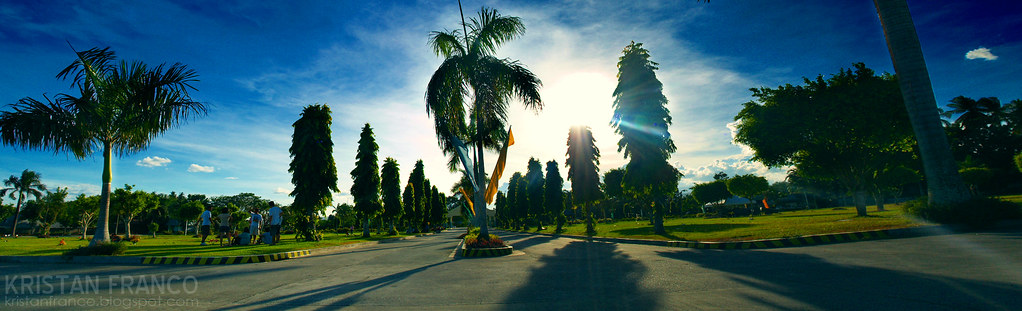
The second one was taken in Mt. Matutum Memorial Park. The final output is a bit tilted, so pardon me for that. With the same set up, 3 photos, and the use of Lightroom 2.0 and PS CS4, I came up with this:

kristanfranco.blogspot.com

If I got spare time, I'll eventually share to you my succeeding Panoramic shots, and let's see if there are some improvements, or are they still the same with these shots above?

Done reading? If you liked my posts, then:

Click here to Subscribe to FREE email updates from "Kristan Franco", you wouldn't want to miss out anything that can be valuable to you and your blog, would you?

Stay Connected


Recieve FREE email updates from Kristan Franco

Enter your email address:


Bookmark and Share


Blogs You'd Like to Visit