About Kristan Franco

Kristan Jan Q. Franco is rooted from General Santos City, and is a 20-year old student of Notre Dame of Dadiangas University. With the course Information Technology, he is into web designing, graphic designs, ads, and photography. Having been introduced into digital tools such as Adobe Photoshop and CSS coding, he began designing variety of graphics in his high school days. When he stepped into college, his interests expanded. With a cheap digicam and a Single Lens Reflex camera, he was engaged into photography and sees it as a hobby. Read more about KFranco »

Wacky Font Effect (Very Basic)

Posted by Kristan Thursday, June 24, 2010 View Comments

The "basics" of a good concept of a wallpaper are the fonts and colors. So this is the most simple way to establish a rhythmic wallpaper. In this blog post, i'm going to share to you a very simple font effect which can be of good use in certain graphic concepts.

Let's call it the wacky font. Chug, chug, chug. With just 5 Photoshop steps, you can create a font effect like this:


Kristan Franco's blog


THE 5 HOLY STEPS (LOL):

1.) After opening Photoshop, decide for the colors you want to use. In my case, I decided to set a dark background and neon colors for the font. Or the other way around, just don't make the background and font colors the same, otherwise, your output will look like a Chamelion.

2.) Choosing a good font. In my output, I used Franchise Font.

3.) Type in a word to start effect. I used the statement, "Light Peace Love". Voila! Your doing good this time.

4.) Duplicate, 0-fill, and adding a stroke. Duplicate the font layer and be sure to make the Fill 0 (not the opacity). After doing this, you will see nothing, it's all right. Right click the text-layer and select Blending Options, go to Stroke and set the size to 1 (if its not already visible, then go for 2), set the fill color same with the color of your font.


Kristan Franco's blog


5.) Align, Tilt, and Tilt the Duplicates. Now we're almost done! Align the duplicated layer to your original text-layer, and tilt it ti add the effect. Duplicate these many times, and see the output. Play these layers by tilting them in different angles. Now we're done! Simple! Now you can create your own wallpaper by just using this. Goodluck!


Kristan Franco's blog


FINAL RESULT:


Kristan Franco's blog


Done reading? If you liked my posts, then: Click here to Subscribe to FREE email updates from "Kristan Franco", you wouldn't want to miss out anything that can be valuable to you and your blog, would you?

Beautiful iPhotos of Philippine Colors from North to South

Posted by Kristan Tuesday, February 23, 2010 View Comments

Recently, I came across Philstar's article about the beautiful and catchy iPhotos of Philippines' North to South vibrant colors. The shooters, equipped with a a photographer's arsenal, showcased the very unique sunrise, sunset, flavorful foods, and eye-catching beaches in the country.

"Makulay" is a tagalog term for "colorful". As what the article emphasized, the word "Makulay" has been the very appropriate word that could sum up all these beautiful iPhotos.


kristanfranco.blogspot.com title=


kristanfranco.blogspot.com title=


kristanfranco.blogspot.com title=


kristanfranco.blogspot.com title=


kristanfranco.blogspot.com title=


kristanfranco.blogspot.com title=


kristanfranco.blogspot.com title=


kristanfranco.blogspot.com title=


kristanfranco.blogspot.com title=


kristanfranco.blogspot.com title=


kristanfranco.blogspot.com title=


kristanfranco.blogspot.com title=


kristanfranco.blogspot.com title=


Done reading? If you liked my posts, then:

Click here to Subscribe to FREE email updates from "Kristan Franco", you wouldn't want to miss out anything that can be valuable to you and your blog, would you?

The World in Fish-eye

Posted by Kristan Wednesday, February 17, 2010 View Comments

One of the many interests I have in Photography is distortion. Distortion is art, and it gives a more dramatic effect to a simple and dull photo. Wide-angle and fish-eye lenses are the main reason why distortion exists in photography.Equipped with a basic DSLR and a good fish-eye filter lens, I was able to apply distortion to my shots.

This is a very simple definition of Fish-eye in Photography:

Of or being a wide-angle photographic lens that covers an angle of about 180°, producing a circular image with exaggerated foreshortening in the center and increasing distortion toward the periphery.
I've got so many fish-eye shots, and I think one blog post won't contain all photos, so I just select some clear shots.

1.) Our Lady of Peace and Good Voyage. A shot during our parade. I zoomed the lens that's why the distortion is just low.


kristanfranco.blogspot.com


2.) RD Plaza, Gensan. Another shot from our parade. Since I zoomed-in the lens, the distortion lessened. One thing, the sky was overexposed.


3.) Sunny Highway. A shot from last month. I was riding a public-utility vehicle when the highway became an interesting scenery to shoot.


kristanfranco.blogspot.com


4.) Hope Springs. A shot taken from the place of a firework incident. The tree was half-burnt. You could see less distortion here because of zooming in, see the clouds.

kristanfranco.blogspot.com


Shooting in fish-eye is quite exciting. You get to see distorted sceneries. So, go, give it a try!

Done reading? If you liked my posts, then:

Click here to Subscribe to FREE email updates from "Kristan Franco", you wouldn't want to miss out anything that can be valuable to you and your blog, would you?

Free Hi-Res Bokeh Textures for Photoshop

Posted by Kristan Monday, February 15, 2010 View Comments

Apologies for the delayed blog posts, I've been dealing with a slow computer in the past 2 weeks since my laptop crashed. So many wonderful ideas popping from my mind now, and this time, i'm going to share to you my own set of Bokeh shots which could be useful for Photoshop as textures.


kristanfranco.blogspot.com


Just in case you don't know what Bokeh means, then here's a simple definition:
In photography, bokeh is the blur, or the aesthetic quality of the blur, in out-of-focus areas of an image, or the way the lens renders out-of-focus points of light. Bokeh occurs for parts of the scene that lie outside the depth of field.
These three Bokeh shots taken using an Olympus E-500 dslr were mostly from leaves and figs I found during a stay at the school. Armed with only a 45mm kit lens, I was able to capture these colorful Bokeh shots. I was thinking of trying out Bokeh shots on night lights.

Meanwhile, you can download the 3 hi-resolution Bokeh textures for Photoshop here. These textures would serve as good background for any Photoshop canvas you'll make. Enjoy!

Done reading? If you liked my posts, then:

Click here to Subscribe to FREE email updates from "Kristan Franco", you wouldn't want to miss out anything that can be valuable to you and your blog, would you?

Monthly Wallpaper - LOVE Typography Wallpaper

Posted by Kristan Thursday, February 4, 2010 View Comments

Woah! February had began, and time flies so fast. To start off this love month, I'm going to showcase my 4th wallpaper filed under Monthly Wallpapers. Most of us knew that February is the love month, and seems like I'm in the mood playing with Xara 3D this time, and the creative juice is flowing freely. This time, I got to create a LOVE Typhography wallpaper.

http://kristanfranco.blogspot.com


Now let's talk all about this wallpaper. It is basically made out of Xara 3D and Adobe Photoshop CS4. Aside from the usual color red for Love, I tried playing with different color combinations and eventually came up with this output.

I got the cool grungy background from Inspiredology. The background gives much more contrast with the Insaburger font, and the theme colors.

This wallpaper is available in wide screen (1280x800) and full screen (1024x768). You can download the jpg files here:

L.O.V.E. Typography wallpaper Full Screen (1024x768)
L.O.V.E. Typography wallpaper Wide Screen (1280x800)

Set them as your dekstop background now! Enjoy watching the colors burst into your eyes!

P.S. Wanna put rock n' roll madness into your desktop? Check out the School of Rock wallpaper series here.


Done reading? If you liked my posts, then:

Click here to Subscribe to FREE email updates from "Kristan Franco", you wouldn't want to miss out anything that can be valuable to you and your blog, would you?

Top 5 Cool Sites that Provide Free Plurk Themes and Layouts

Posted by Kristan Wednesday, February 3, 2010 View Comments

With only 2 years and running,Plurk today is now one of top social networking sites. Aside from it's interactive GUI, you can also reflect your personality and creativity through customizing your timeline and dashboard themes.


http://kristanfranco.blogspot.com


Well, let's admit the fact that having our Plurk profiles tweaked inspires us more to Plurk. Trust me, I'm one of those.

Since most of the Plurk users don't have the knowledge on CSS coding, mainly used to create Plurk themes and layouts, here are 5 cool sites that provide Plurk themes and Layouts:

1.) Layout Freak


http://kristanfranco.blogspot.com


2.) Plurk Doodles


http://kristanfranco.blogspot.com


3.) Plurk-Layout


http://kristanfranco.blogspot.com


4.) Plurkocity


http://kristanfranco.blogspot.com


5.) Layout Monster


http://kristanfranco.blogspot.com


Choose from these wide variety of Plurk themes now, and see your Plurk profile shine!

Done reading? If you liked my posts, then:

Click here to Subscribe to FREE email updates from "Kristan Franco", you wouldn't want to miss out anything that can be valuable to you and your blog, would you?

I've been a Plurker and Twitter user for about a year now, and losing Karma Points in Plurk might be the very heartbreaking news you'll ever get from Plurk. Tweeting on the other hand, is a must, updating my followers to check out my new posts.

http://kristanfranco.blogspot.com


In desperation for Karma Point, I became a frequent user of Phplurk's gateway just to update my daily activities even though i'm afar from keyboard (AFK). Just by texting to a Phplurk's associate gateway mobile number, one for Globe, and one for Smart, you can already update.

Later on, Phplurk became a major diversion for plurking in most of the Filipino Plurkers, since it is only locally available.  Meanwhile, Tweeting has been casual in most of the mobile phones with browser.

After quite some time, Phplurk had been experiencing frequent delay of Plurk posts. After these delays, Plurks won't arrive in the user's dashboard anymore. That was the time when Phplurk gradually lost it's essence.

http://kristanfranco.blogspot.com


In solution to this, and for Karma's sake, a new Plurk gateway had been create. Make way for gladlyCast and their services for Plurkers and Twitters. gladlyCast provides Plurk and Twitter gateways for SMS. Just like Phplurk, you are required to sign up and test a certain procedure to complete the registration.

gladlyCast's features:
  • Available for 3 countries, Philippines, Singapore, and Malaysia. Each country has a unique gateway number
  • Local SMS cost/charge for each Plurk or Twitter update
  • You can type in different language based on your phone's specification
  • Unlike Phplurk, gladlyCast don't promote their url in every Plurk made through the gateway
  • Very easy registration process

Oh yeah! How does it feel? Your KARMA POINTS won't drop anymore, if you constantly send SMS through this gateway! Impressive.

Sign up now, and be able to update your Plurk and Twitter accounts in just the rule of the fingers.

Be sure to follow them on Plurk, and on Twitter to receive the latest updates on their service.


Done reading? If you liked my posts, then:

Click here to Subscribe to FREE email updates from "Kristan Franco", you wouldn't want to miss out anything that can be valuable to you and your blog, would you?

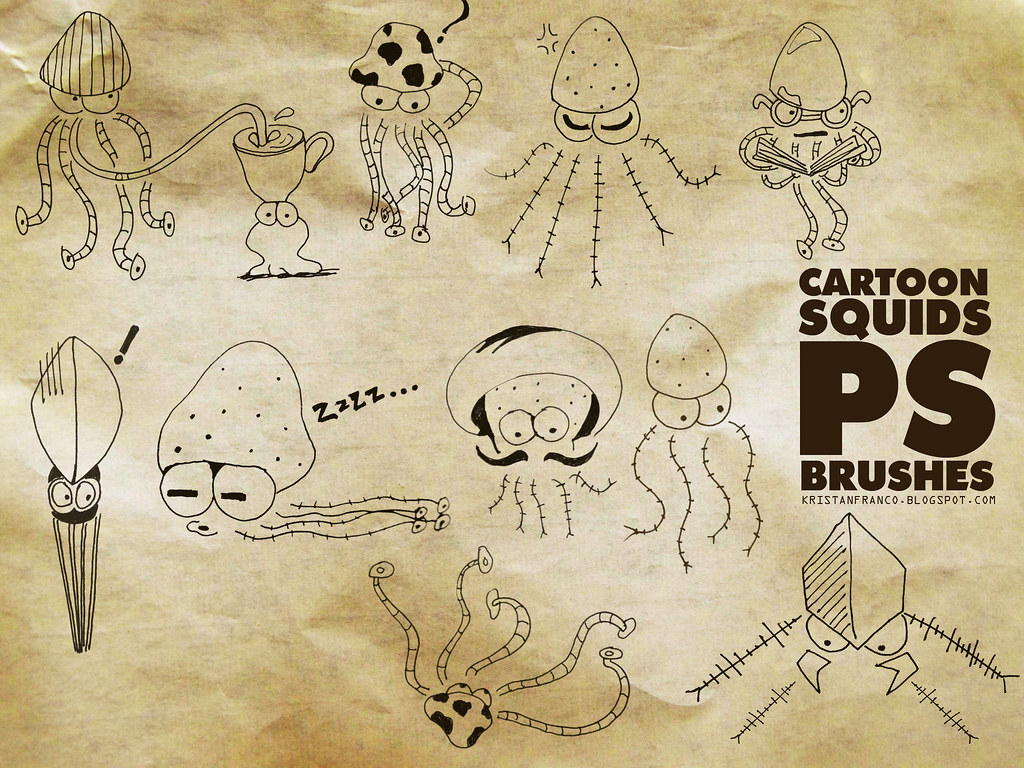
Free 10 Sketched Cartoon Squids Photoshop Brushes

Posted by Kristan Friday, January 29, 2010 View Comments

ZAP!!! I got to play with my drawing pen again and this time, human-alike cartoon squids buzzed my creative juice. Just in case you wanted some sketched elements in your Photoshop canvas, you might want to use these as BRUSHES! Yes, brushes! This is my second brush set made in Photoshop CS4.

http://kristanfranco.blogspot.com


These sketched cartoon squid brush set approached in a more humanistic way are ideal and can be matched with scribbles and doodles, since these are pen-made.

If you want to use these brushes, you can download the Free 10 Sketched Cartoon Squids Photoshop Brushes set
here. Since any Photoshop brush or brush set has a file extension of .abr, this HI-RES brush set should be compatbile with all versions of Photoshop
Terms of use: The brushes can only be used for personal and non-commercial purposes. Since these brushes are for free, no redistributing is allowed. Please do refer to this original blog post in order to share it to others.


Done reading? If you liked my posts, then:

Click here to Subscribe to FREE email updates from "Kristan Franco", you wouldn't want to miss out anything that can be valuable to you and your blog, would you?

Faking Infrared Photo in Photoshop Using Actions

Posted by Kristan Saturday, January 23, 2010 View Comments

Infrared Photography refers to the area of photography in which photos are taken with film sensitive to infrared light.

When these filters are used together with infrared-sensitive film or sensors, very interesting "in-camera effects" can be obtained. false-color or black-and-white images with a dreamlike or sometimes lurid appearance known as the "Wood Effect," an effect mainly caused by foliage (such as tree leaves and grass) strongly reflecting in the same way visible light is reflected from snow.
http://kristanfranco.blogspot.com


In real IR processing, infrared filters could be very expensive to obtain. In solution to that, the use of Adobe Photoshop and its certain features such as channel mixer and RGB and LAB colors, photography hobbyists and even professionals can obtain the results close to a real infrared-processed shot.

Download my free Photoshop 2 versions of Fake Infrared action sets here and here.

With various tools and resources available in the web, I managed to create sets of Photoshop actions in faking the infrared processing on photos.

Here are the results of the photos I processed fakely in Photoshop. Hover your cursor in the images to see the result.

http://www.kristanfranco.blogspot.com


http://www.kristanfranco.blogspot.com


http://www.kristanfranco.blogspot.com


Are the results close enough? Download my Fake Infrared actions sets now and study the steps on how to fakely process your photos. Goodluck!


Done reading? If you liked my posts, then:

Click here to Subscribe to FREE email updates from "Kristan Franco", you wouldn't want to miss out anything that can be valuable to you and your blog, would you?

http://kristanfranco.blogspot.com/I found myself doodling and sketching while being admitted to the hospital for some medication, and after a week, examination took its toll on me. It's great to be back blogging again after a week of examination. One new post after a week or two!


Since i've been admitted for almost a week at the hospital, I was able to design two sketched canvas, with just pure sign pen. Anything out of imagination, 2 abstract drawings were made. Sketching is exciting, do you agree?

http://kristanfranco.blogspot.com/

So, as you may notice that this drawing is so dull and looking at it might be uninteresting. To optimize this drawing, I decided to turn it into an cd album cover.

Music has been an inspiration to me. I've been into a band and making Album covers must be fun and exciting. With the use of certain splatter brushes and textures found around the web, I was able to make this hoax cd album cover.

http://kristanfranco.blogspot.com/

Here are some tips in making awesome CD Album covers:

1.) Prepare your drawing.

You have to scan your drawing. In my part, I just shoot this drawing on a clean floor, with the highest quality as much as possible.

2.) Prepare the brushes and texture.

I was able to find some splatter brushes around the web, so go help yourself. In the texture, I've been a reader of Inspiredology and the author offered high quality textures.

So go download them.

3.) The genre of your Album cover.

You wouldn't want to entitle your album cover as "Lovely Hearts" when you notice that the design is pure grunge, would you? So decide for an appropriate theme for a title of the album.

For example, I just choose Chicosci's previous album title, "Method of Breathing" for my hoax Album cover. It is somehow related because my drawing is abstract, but can be seen and can be percept as people. Life is related to the album title.

4.) Setting the blending options to MULTIPLY.

You may notice that when you try to overlap your drawing into the texture, the texture will be covered with the canvas' white background, mainly the bond paper you scanned.

So the solution to this problem is, set the blending options of your drawn piece into MULTIPLY

5.) Splatter brushes over the layers.

To add a more dramatic effect, we use the splatter brushes. Complimentary colors are brilliant to see, so we get hold of these colors.

Be sure to create a new layer over all the layers, and brush as much as you want. After brushing, now you're almost done. Set the blending options to Linear Burn and see for yourself a good transformation out of the drawn canvas.

6.) Album Title has the impact.

For the finale, add your album title in a simple or complicated way. In my piece, I just use a very basic font in order to contrast with the grungy background. With this, contrast became an impact.

So here is my final work:

http://kristanfranco.blogspot.com/


Credit for PSHero for the awesome slick cd container.

See? Just viewing your own work makes you want to be a rockstar!

Done reading? If you liked my posts, then:

Click here to Subscribe to FREE email updates from "Kristan Franco", you wouldn't want to miss out anything that can be valuable to you and your blog, would you?

Tilt-shift (Miniature) Photo Effect Using Photoshop

Posted by Kristan Monday, January 11, 2010 View Comments

kristanfranco.blogspot.comRecently, I posted my 15 Brilliant Tilt-shift photos, and just in case you don't have any idea on what a tilt-shift photo is, this is a shooting technique in photography that makes a scene looks like miniature.

Without using a real tilt-shift lens, you could turn a simple photo into a tilt-shift photo by using Photoshop. Photoshop is the most conventional tool.

In this basic tutorial, you can now make your photos look like miniature. With a knowledge on quick masking, filters, and saturating, your photo will now look like a real miniature!

To start of this tutorial, choose a suitable photo for this effect. Buildings are the best examples for this photo effect. I found this photo from Google.

kristanfranco.blogspot.com


1ST STEP: Quick Mask Mode and Gradient

Enter quick mask mode by clicking the icon just below the foreground and background colors, or simply hit "Q" in your keyboard.

After setting your workplace in Quick mask mode, hit "G" in your keyboard to select the fill tool, be sure to use the gradient fill. Just like in the screenshot, drag a straight vertical line to fill the photo with the sample gradient. Since we are in Quick Mask mode, the gradient will be a quite transparent red.

kristanfranco.blogspot.com


2ND STEP: Standard Mode

Now, we have created a gradient into the photo. We we'll do now is to exit the quick mask mode, by hitting "Q" again. After exiting the quick mask mode, you'll notice that the gradient you created is now transformed into a marquee, or simply what we called in Photoshop "the marching ants"

kristanfranco.blogspot.com


3RD STEP: Filter

To start applying the miniature effect, go to Filter>Blur>Lens Blur. Set the values.

kristanfranco.blogspot.com


4TH STEP: Saturation

To make the miniature effect look more realistic, set the saturation to 40, to pop out its the colors.

kristanfranco.blogspot.com


FINAL OUTPUT:

kristanfranco.blogspot.com

There you go, a tilt-shift photo effect processed in Photoshop!

Here is an other photo I use in applying this photo effect tutorial:

kristanfranco.blogspot.com


Done reading? If you liked my posts, then:

Click here to Subscribe to FREE email updates from "Kristan Franco", you wouldn't want to miss out anything that can be valuable to you and your blog, would you?

15 Brilliant Tilt Shift Photos

Posted by Kristan Sunday, January 10, 2010 View Comments

Tilt-shift shooting is one of the most interesting photography techniques wherein a life-size photograph is manipulated to give an optical illusion of a miniature scale.

Real Tilt-shift photography is all about changing the angle of the camera to give a different perspective and to make something look bigger or smaller.
There are camera lenses that specialize in tilt-shifting. If you haven't got a tilt-shift lens, one way to turn a photo into a tilt-shift shot is the use of Photoshop.

I viewed photos from Flickr and these are the 15 brilliant tilt-shift photos I choose:

1.) Toy Kuala Lumpur - Timmy Toucan

kristanfranco.blogspot.com


2.) Nice, France - Jason Ruff

kristanfranco.blogspot.com


3.) Joe's Crab Shack, Nashville - Shawn Ide

kristanfranco.blogspot.com


4.) Toy Bridge - darktiger

kristanfranco.blogspot.com


5.) Oasis Miniature - roevin

kristanfranco.blogspot.com


6.) Seattle Waterfront - sonek321

kristanfranco.blogspot.com


7.) Tilt-shift Tram - teppistella

kristanfranco.blogspot.com


8.) King's Island Tilt-Shift - jsrcyclist

kristanfranco.blogspot.com


9.) Canoe - Jeff Rogerson

kristanfranco.blogspot.com


10.) Market Street - Reven.

kristanfranco.blogspot.com


11.) Airport - pattagon

kristanfranco.blogspot.com


12.) Shangri-la Mall - Daniel Y. Go

kristanfranco.blogspot.com


13.) First Tilt-shift shot - Daniel Ashton

kristanfranco.blogspot.com


14.) Yosemite Valley - Ryan jay

kristanfranco.blogspot.com


15.) Shoshone Falls - Wookieslayer

kristanfranco.blogspot.com


After viewing these brilliant tilt-shift photos, I wanted to try! Taking photos and processing it in Photoshop afterwards must be fun. I'll be posting a tutorial on how to fake tilt-shift photographs. So be sure to keep track on this blog.


Done reading? If you liked my posts, then:

Click here to Subscribe to FREE email updates from "Kristan Franco", you wouldn't want to miss out anything that can be valuable to you and your blog, would you?

Stay Connected


Recieve FREE email updates from Kristan Franco

Enter your email address:


Bookmark and Share


Blogs You'd Like to Visit